About Print & Resource Center
The Print & Resource Center provides high-quality, affordable printing for students, student organizations, staff, and departments across campus (anyone with a Wiscard). From posters and flyers to tabling materials and games to creative projects, you can customize your prints with multiple paper weights, sizes, and colors, along with three large-format paper options—offering more flexibility than standard campus printing. Stop by anytime and bring your ideas to life with reliable quality at a student-friendly price.
Ready to get started?
- View printing options, pricing & templates
- Check out equipment & make reservations
- Upcoming events & workshops
Location: 333 East Campus Mall– Room 3303 (3rd Floor)
Hours: (During the Academic Year)
- 10:00am – 9:00pm: Sunday through Thursday
- 10:00am – 7:00pm: Friday & Saturday
Office Hours : Stop by if you need help with a printing project!
From (9/2/2026 – 12/9/2026):
- Mondays 12:00-3:00 pm
- Wednesdays 1:00-3:00 pm
- Thursdays: 11:00am-1:00pm
- Fridays: 11:00am-1:00 pm
Note: This Friday 10/16/26 the Office hours will be held from 1:30- 3:30 pm. Stop by if you need assistance with anything!
What We Can Help With During Office Hours
PRC Office Hours provide an opportunity for students to receive assistance with printing and project production. Staff are available to help plan projects, answer questions, and guide users in working with PRC equipment and materials.
Common requests supported during office hours include:
- Printing on personal specialty paper (laser compatible)
- Assistance with complex printing projects
- Booklet printing and assembly
- Large-format printing on specialty papers such as Full Gloss, Adhesive Matte, or Tyvek
- Coil binding books or documents
- Support using tools such as the Cricut cutter and guillotine cutter
- Assistance with Folder machine (multiple folds available)
Payment Method: Wiscard and Departmental Print Cards.
- It is super easy to acquire a departmental print card. See FAQ section below
FAQs
The RSO Print and Resource Center is open to Registered Student Organizations at UW–Madison, UW–Madison departments, tenants of the Student Activity Center, as well as students with a Wiscard.
All users of the RSO Print & Resource Center must have a NetID and password.
Patrons may pay for prints with Wiscard or departmental print cards. Merchandise can be purchased with a Wiscard or a credit/debit card.
- Email the Wiscard office (wiscard@union.wisc.edu) to request the Departmental Print Card form.
- Send the completed form back to the Wiscard office email address.
- The Wiscard Office will process your request in two business days or less and let you know when your card is ready.
- You can use a “Departmental Print Card” just like a Wiscard at the RSO Print and Resource Center
- You can have different departmental print cards tied to different funding strings if you like. This will be smooth for the user.
If you’re experiencing issues while trying to release print jobs from the “Release Station,” here are some common problems and solutions:
The PaperCut Pay Station application was accidentally closed.
- Issue: The PaperCut Pay Station application may not reopen automatically if it is closed.
- Solution: Sign out of the Pay Station computer and then sign back in. This will relaunch the application and allow you to access your print jobs.
Print jobs were sent to the previous user’s account.
- Issue: If the “Print Share” computer was not logged out by the previous user, your print jobs might be sent to their account. As a result, when you log into the “Release Station,” your jobs will not appear.
- Solution: Always ensure you log out of the “Print Share” computer after sending your print jobs. If you encounter this issue, restart your printing process after confirming you’re logged into your account.
The monitor is turned off.
- Issue: The monitor of the “Release Station” might accidentally be turned off, making it appear that the station is nonfunctional.
- Solution: Check the power button on the back of the monitor (lower-right corner when viewed from the front). Ensure the monitor is turned on.
If you encounter other issues or require assistance, don’t hesitate to contact the Print and Resource Center staff for help.
RSOs can fill out the Wiscard Departmental Request Form and submit it to the Wiscard Office to request a Departmental Print Card. However, if the RSO is receiving funding, the funding body (like ASM, WEG, MCC, etc.) will submit the form on the RSO’s behalf.
Using a Departmental Print Card for payment is simple:
- Select “Departmental Print Card” as your payment method from the dropdown on the PaperCut screen.
- At the release stations, enter the card number and PIN.
To check your balance:
- Search my.wisc.edu and login with your NetID and password.
- Scroll to the Wiscard Balance Tile.
- Now, you will be able to see your balance.
To deposit money, visit the Wiscard “Make a Deposit” webpage.
Yes, students can request printing services through our partner, Digital Publishing and Printing Services (DPPS). Simply place your order using a credit card or funding string (no Wiscards accepted), and DPPS will deliver your print items to our pickup spot (a red cubicle by the mailboxes) by 4:00pm daily. We also offer self-service printing options, but for more specialized requests, DPPS is available to assist.
Follow these quick steps to get a receipt:
- Visit print.wisc.edu and log in with your NetID.
- Select “Recent Print Jobs” from the side menu to see your recent printing jobs that were charged.
- Find the print job you need the receipt for and select one of the icons next to “Export/Print” label to export the receipt as a PDF, HTML, or CSV file.
- Once you select any of the icons the receipt will automatically export as a PDF, HTML, or CSV File.
- Download and save your receipt.
For more information, visit the KnowledgeBase.
Follow these steps:
- Log into the PaperCut portal with your NetID.
- In the “Recent Print Jobs” menu, find the job that gave you issues, and click “Request Refund.”
- Fill out the request form.
- You’ll be notified when the refund is approved or denied.
For more information, visit the KnowledgeBase.
We offer a variety of custom services during office hours, including but not limited to, booklet and postcard printing, Tyvek and Adhesive Matte large format printing, and hands on training and advice.
You can find a full list of available services above on this page. If you’re unsure what works best for your project, feel free to stop by the PRC during our office hours and our staff can help you explore options and get started.
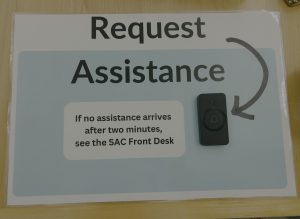
If you need assistance at any point, simply press the “Request Assistance” button located in the PRC.
A staff member will be notified and come over to help you as soon as possible.
To make your own custom stickers, start by using one of the Sticker Templates (scroll to the bottom of the page) we provide. Add your design to the template, then print it on sticker paper using the “Sundae” printer in the PRC. Sticker paper is available for purchase at the SAC Front desk.
You can also follow our how-to guide for step-by-step instructions. PRC staff are available during office hours if you need help at any point.
Yes! you can use our Twist mobile printer to print directly from your phone. When you visit the PRC, you’ll find step-by-step instructions to guide you through the process.